Snippets
Snippets are a useful feature for saving and reusing common bits of your patterns, or for sequences of threads you'd like to bookmark.
They are also useful if you have a pattern with lots of similar thread sequences that you want to repeat or re-use -- without having to recreate them manually each time.
In summary:
- Snippets can be copied from parts of your warps and wefts
- Snippets can be inserted into the same pattern from which they were taken, or into your other patterns
- When inserting snippets, you can choose to retain the original thread colour, or use the current pattern's default colour
- When inserting snippets, you can choose how many times the snippet should be repeated
- Snippets are saved to your Treadl account
- Snippets can be deleted at any time without affecting patterns in which they have been used
In this article we will explain how to create, use, and delete your snippets.
Creating a snippet
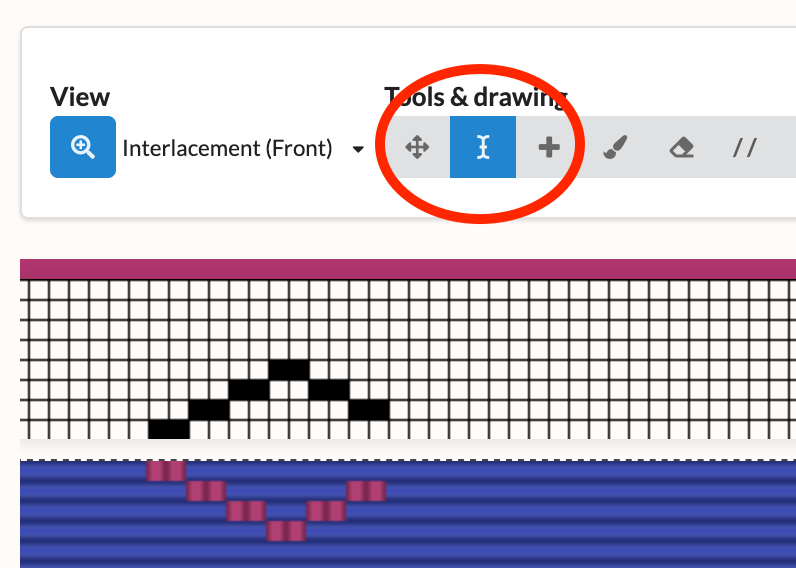
To create a snippet, open one of your patterns in the pattern editor, and select the "Select" tool. Use this tool to select (by clicking or dragging) across the threads (from either your warp or weft) that you want to add to your snippet.
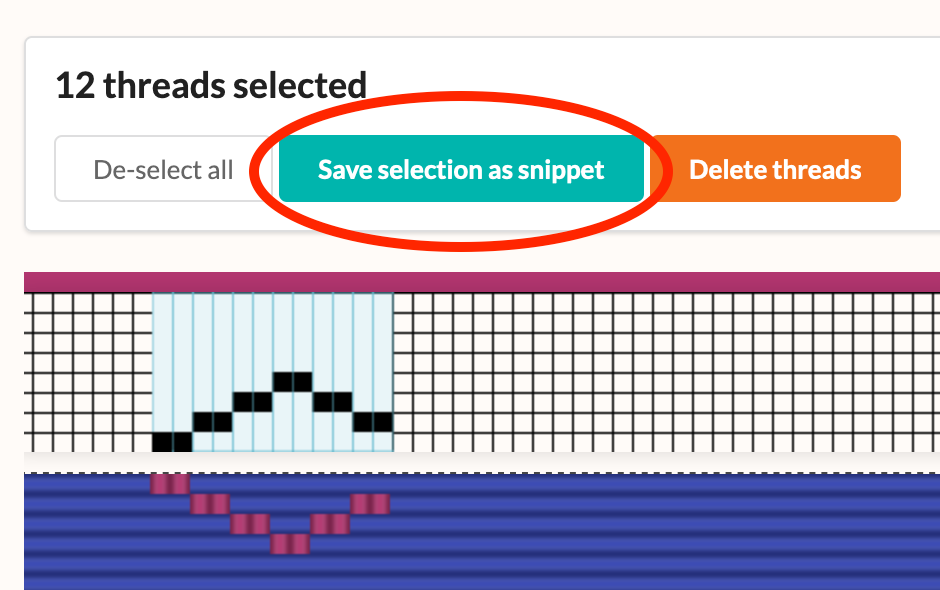
Once selected, click the "Save selection as snippet" button.
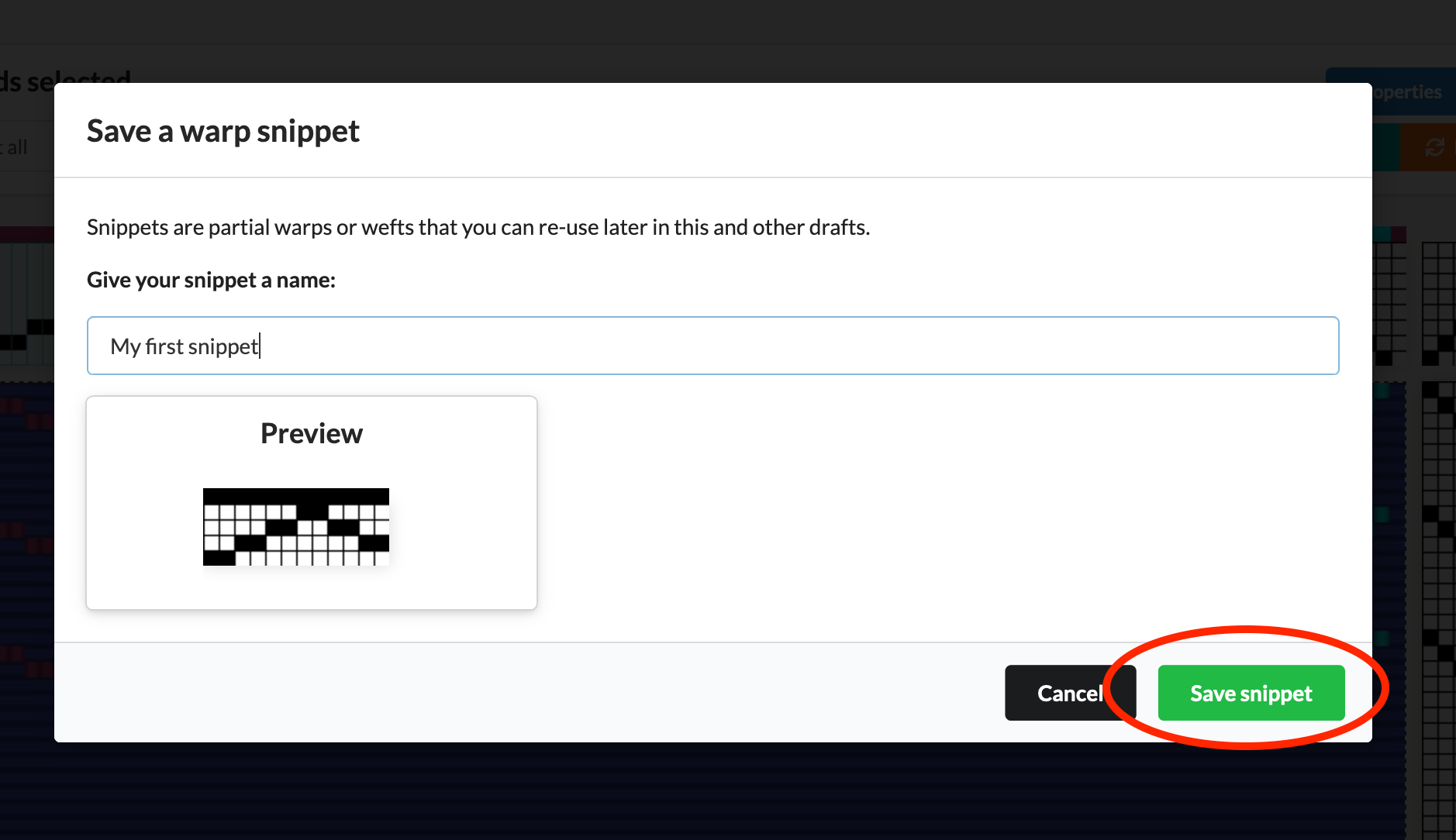
In the window that appears, give your snippet a name (or just use the default) and then click the "Save snippet" button.
Your snippet is now saved to your account. To revert the pattern to "editing mode", simply click the "De-select all" button.
Inserting a snippet
To now use your snippet, open a pattern (or use the same pattern) in the editor, and select the "Insert" tool.
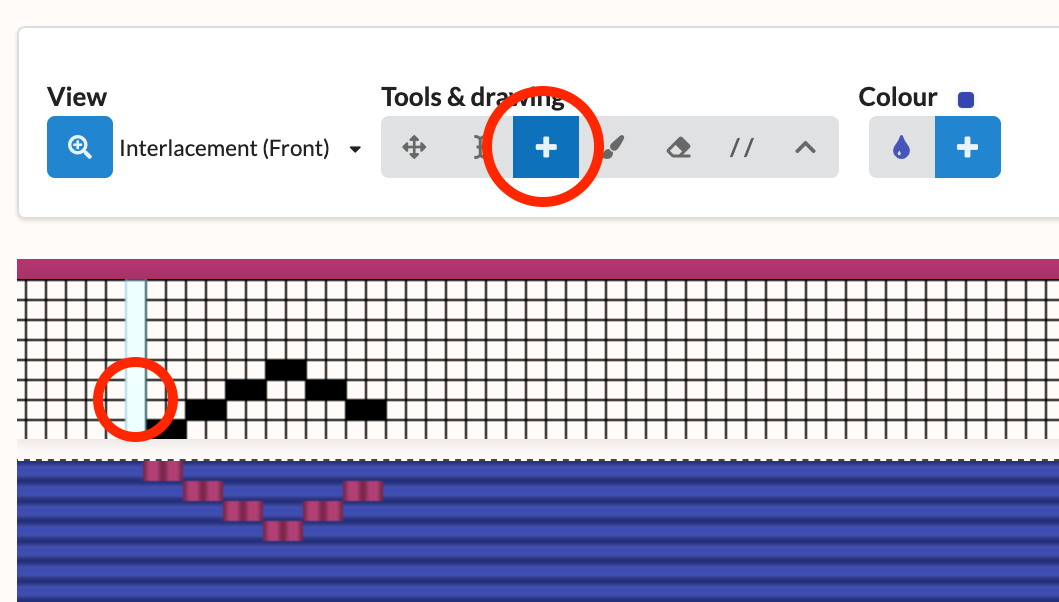
With the Insert tool selected, click the thread from where you'd like to begin the insertion of your snippet. A window will appear, showing you the snippets you have saved. (Note, that if you are inserting into the warp, then only snippets for the warp will be shown, and vice versa.)
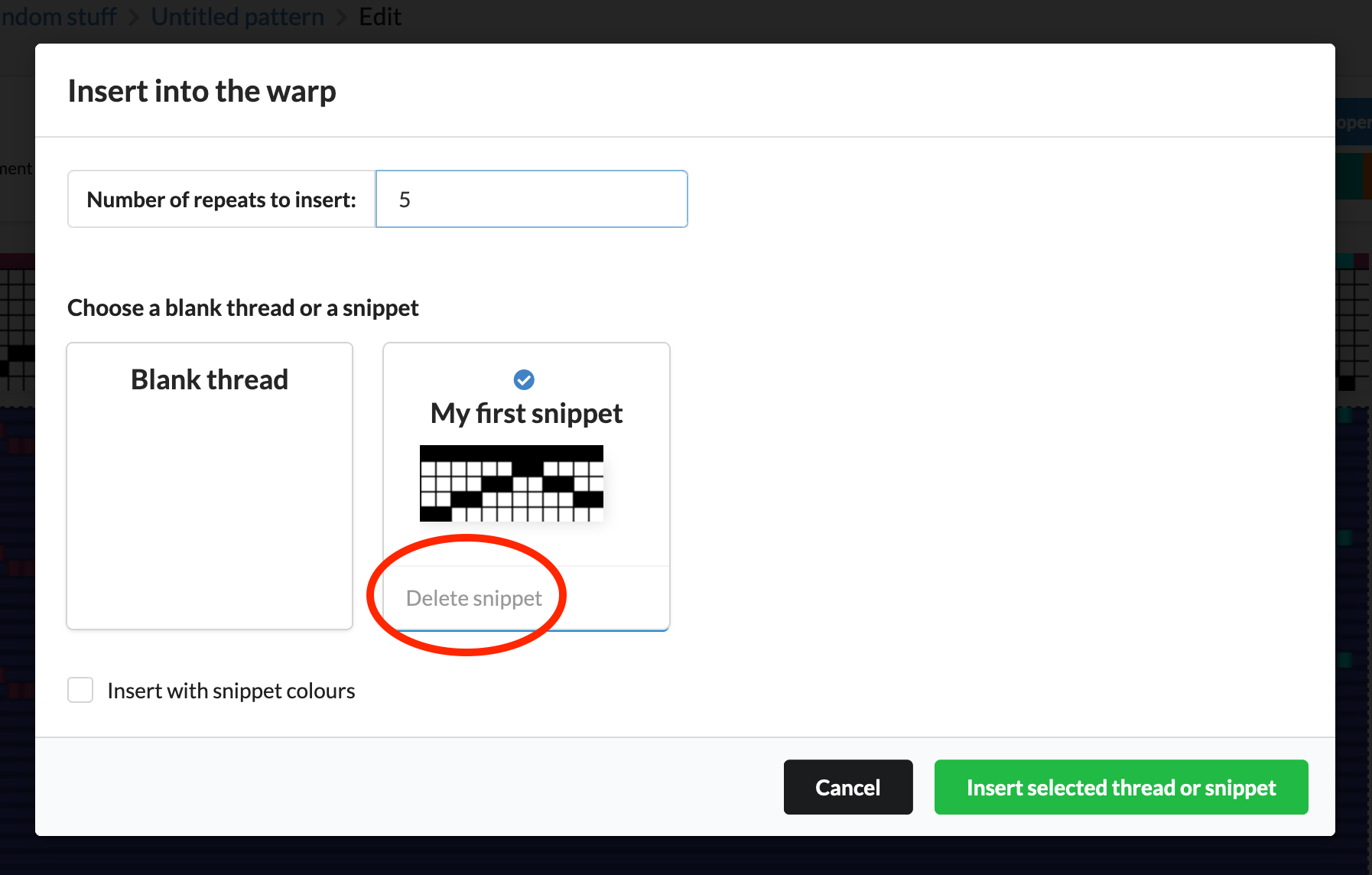
In this window, enter a number to represent the number of times you'd like to insert this snippet (i.e. to repeat the sequence of threads), and select the snippet you'd like to insert.
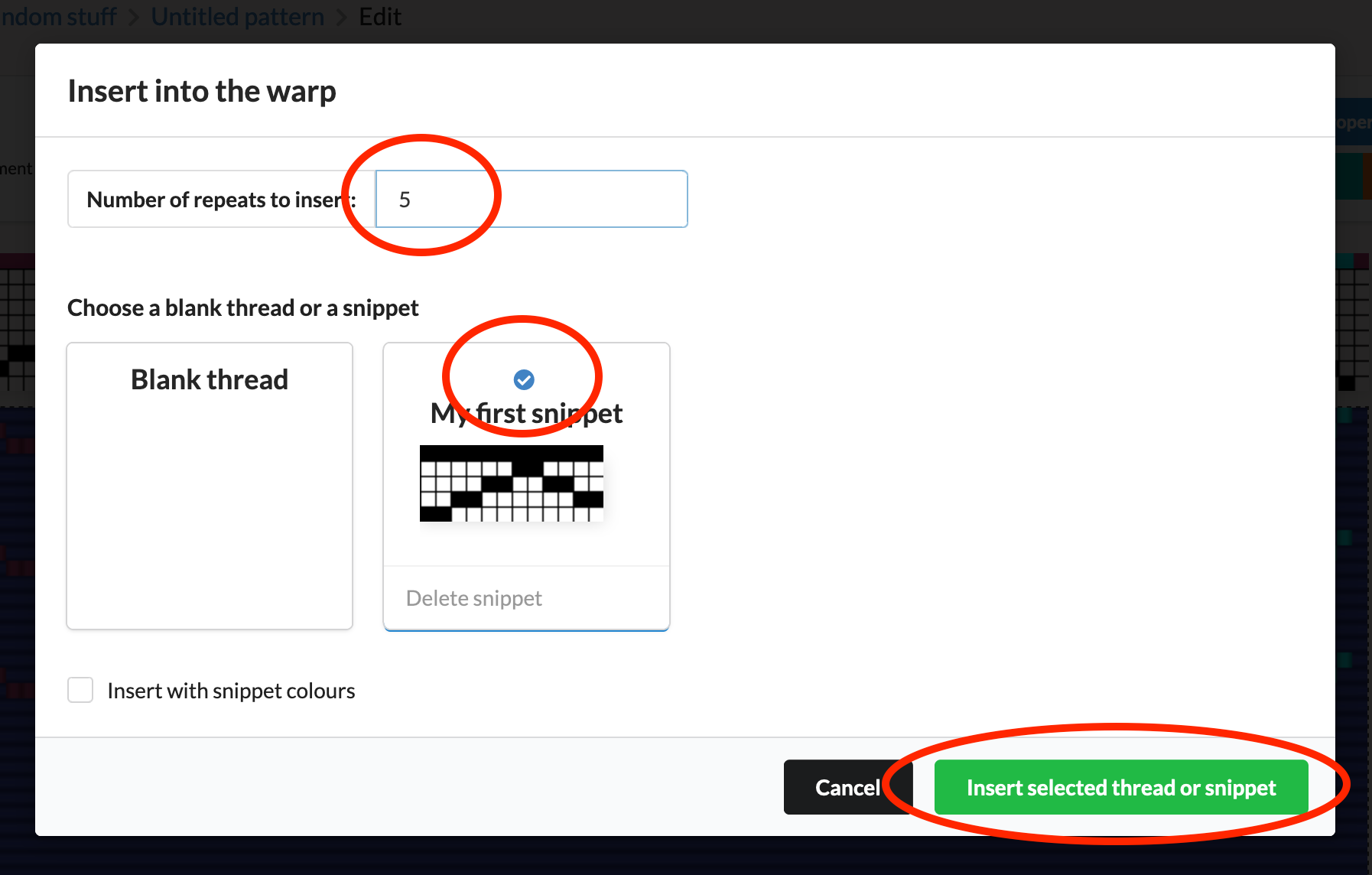
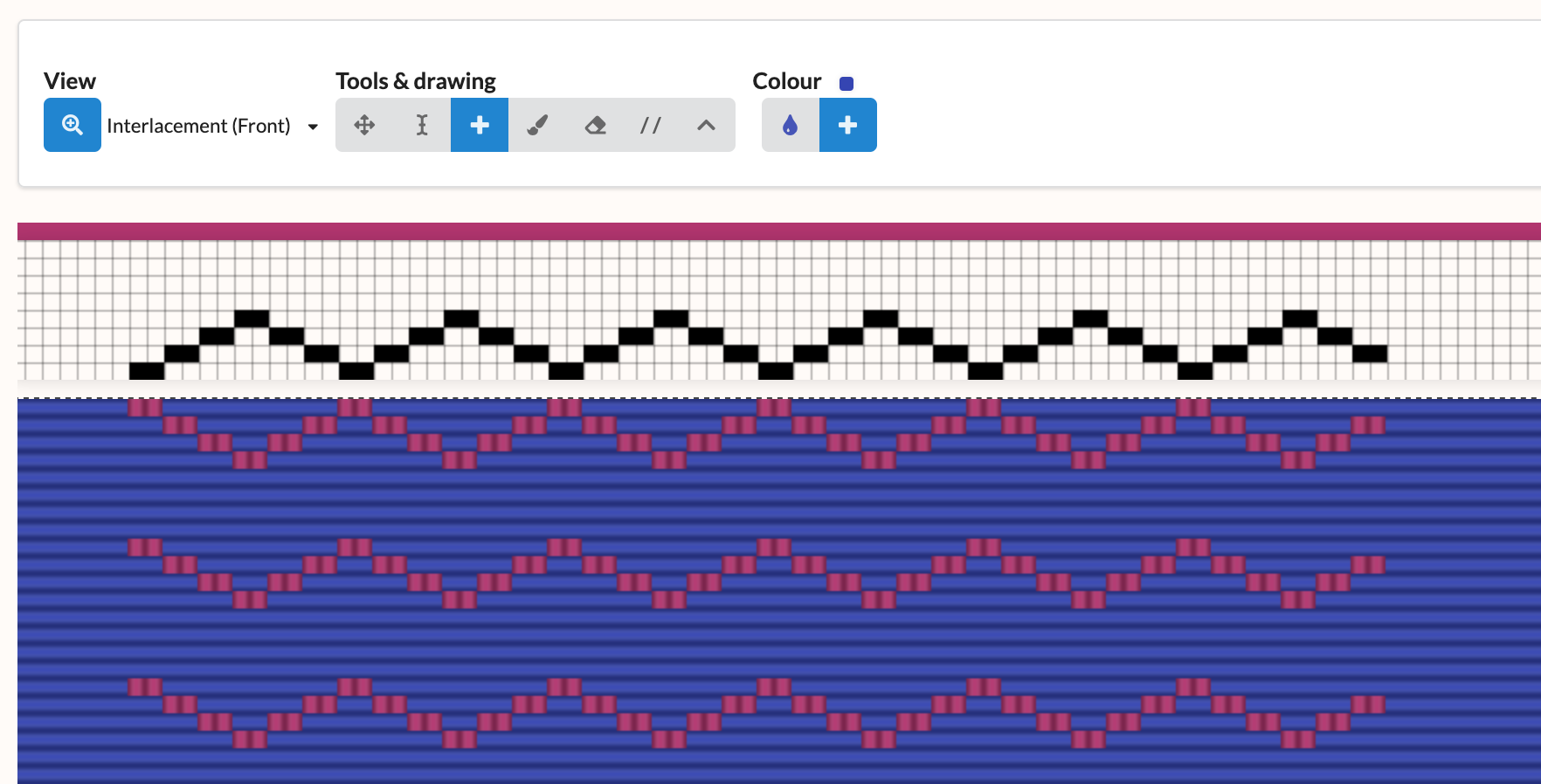
Finally, click the "Insert" button, and you'll see the newly inserted threads applied to your pattern. You can then edit these and/or apply colours as you normally would.
Deleting a snippet
To delete a snippet, simply open the "Insert snippets" window as described above, and click the "Delete snippet" button.